Open beta · free Power electronics · control · process

The engineering notebook
for circuits.

Draw converters, control loops and flowcharts on sheets that open like blocks, with IEC or ANSI symbols, junction dots that place themselves and LaTeX everywhere. Then present it, export it to your report, or work on it with your team — right in your browser.

No account needed · works offline · free during the open beta

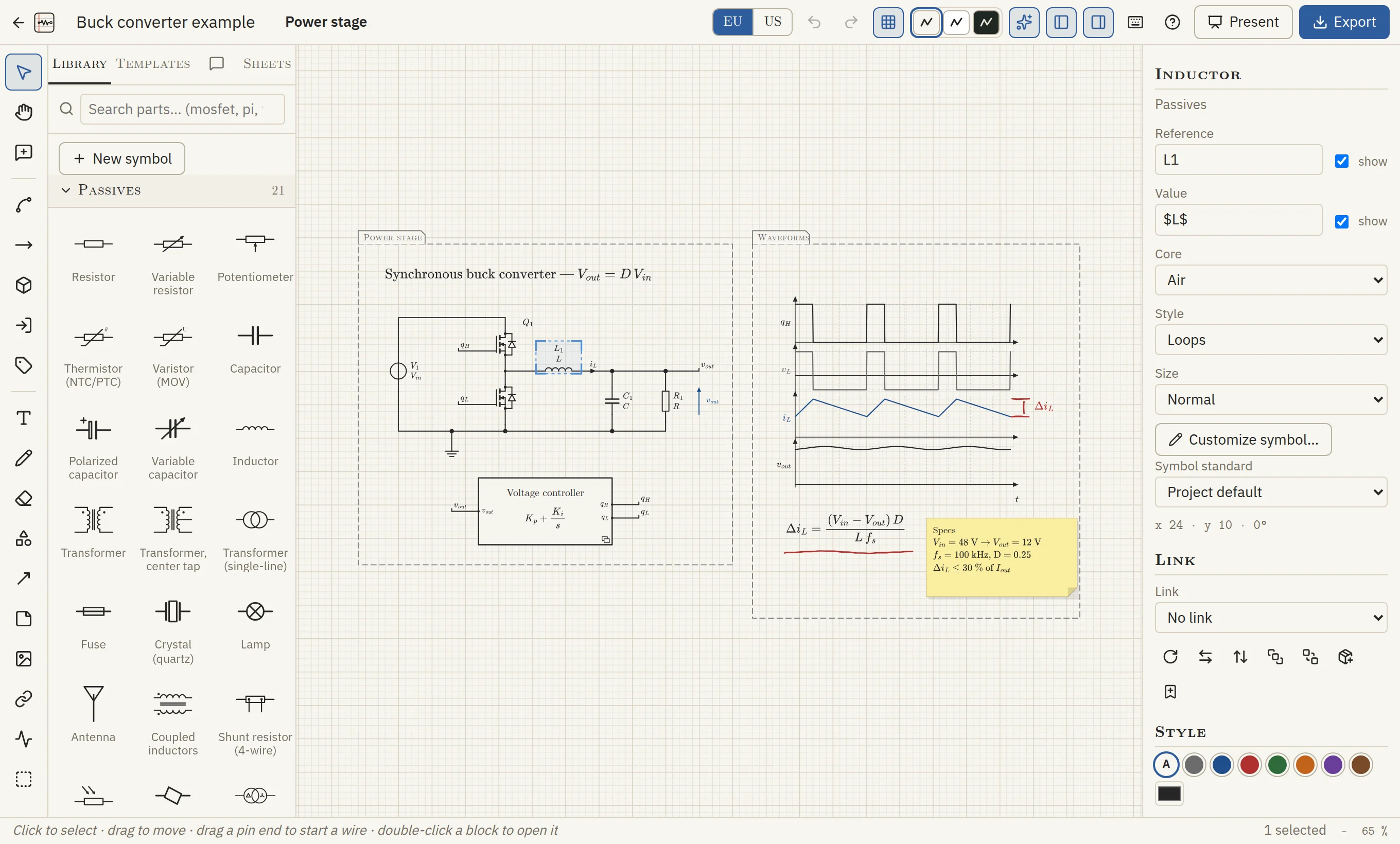
The Circuit Notebook editor with the buck converter example: the power stage with a hierarchical voltage-controller block, and next to it the chronogram of the converter annotated in red pencil, the ripple formula and a sticky note.
EU or US symbols, one click
a whole sheet inside this block

Schematics

Symbols done right

152 parts in 12 families, in IEC 60617 or IEEE 315 style — the whole drawing switches in one click. Wires snap to the grid and follow the parts; junction dots place themselves.

  • MOSFETs with body diode, IGBTs, GaN, bridges, transformers, machines
  • LaTeX in every label, like Vout = D·Vin
  • Labels turn with the part, like in LTspice
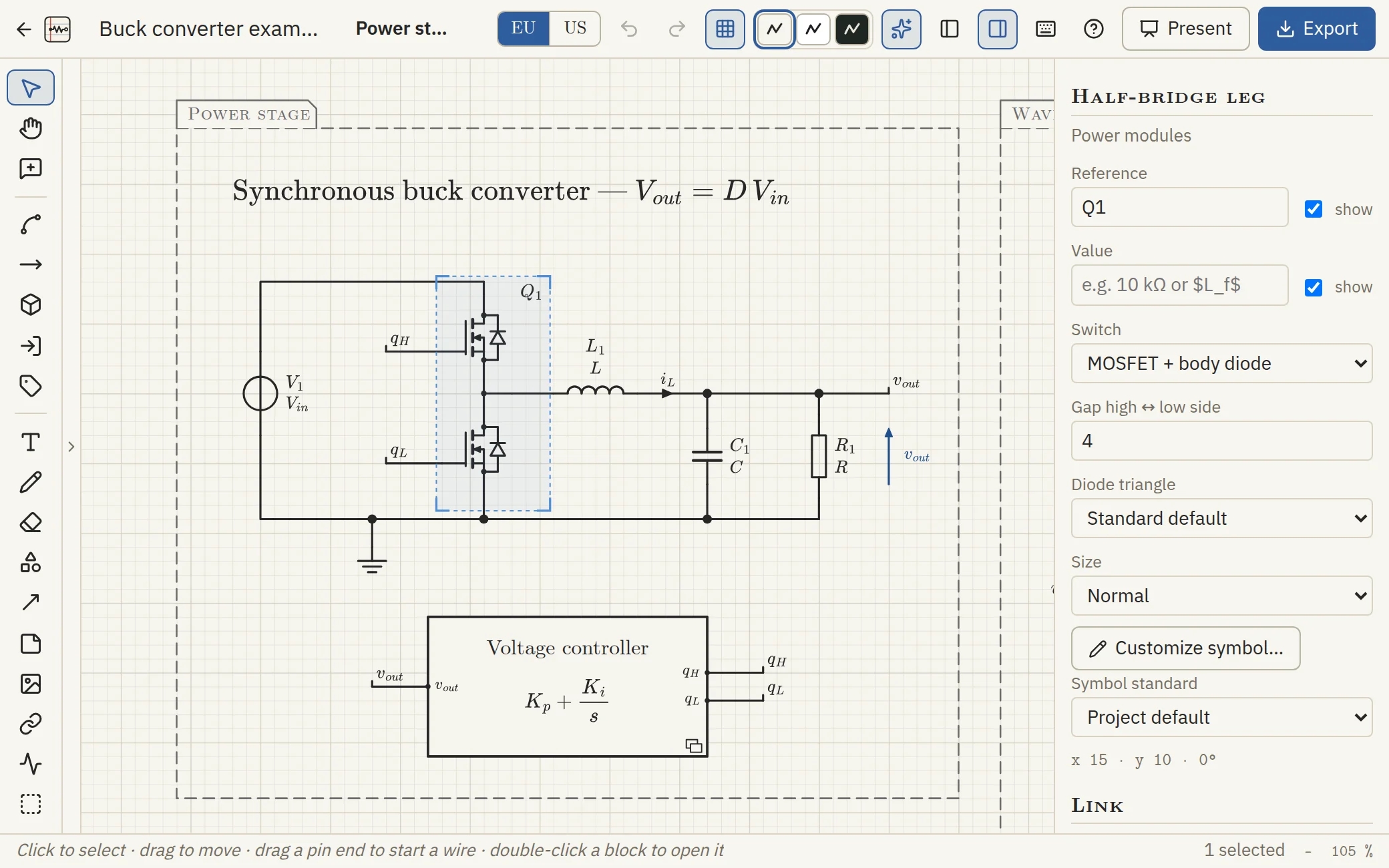
The power stage of the buck converter: half-bridge with body diodes, LC filter, load, the voltage-controller block, and the options of the selected half-bridge.

Hierarchy

Sheets inside blocks

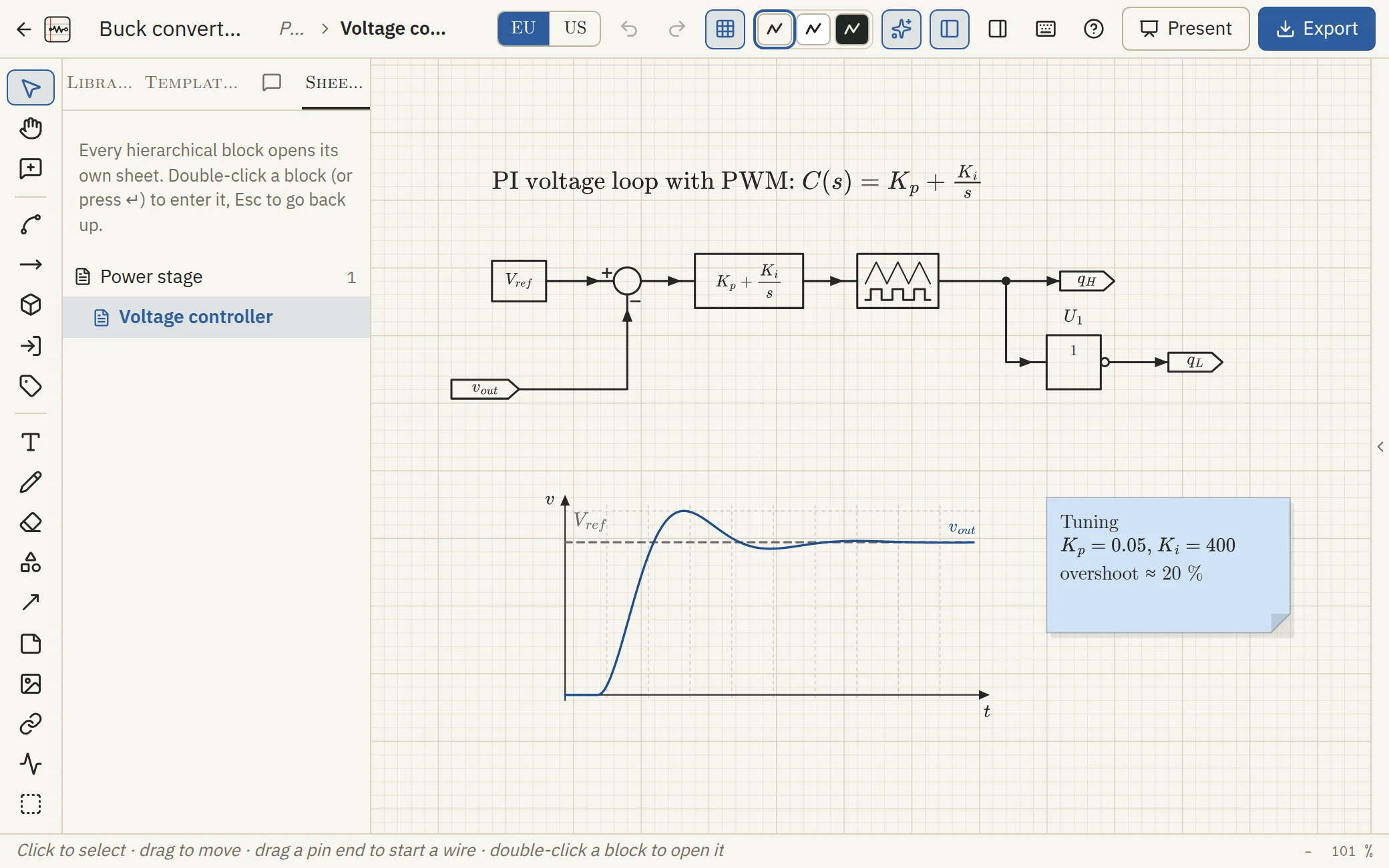
A block is a whole sheet: double-click it to go inside, draw the controller, add ports — they become the pins of the block. In the PDF, every block is a link to its page.

  • The Sheets tab shows the whole tree
  • Ports stay connected to the pins of their block
  • Nest as deep as your design goes
Inside the voltage-controller block: reference, summing junction, PI controller, PWM and sheet ports, with the closed-loop step response and a tuning note.

Waveforms & sketches

The waveforms, next to the circuit

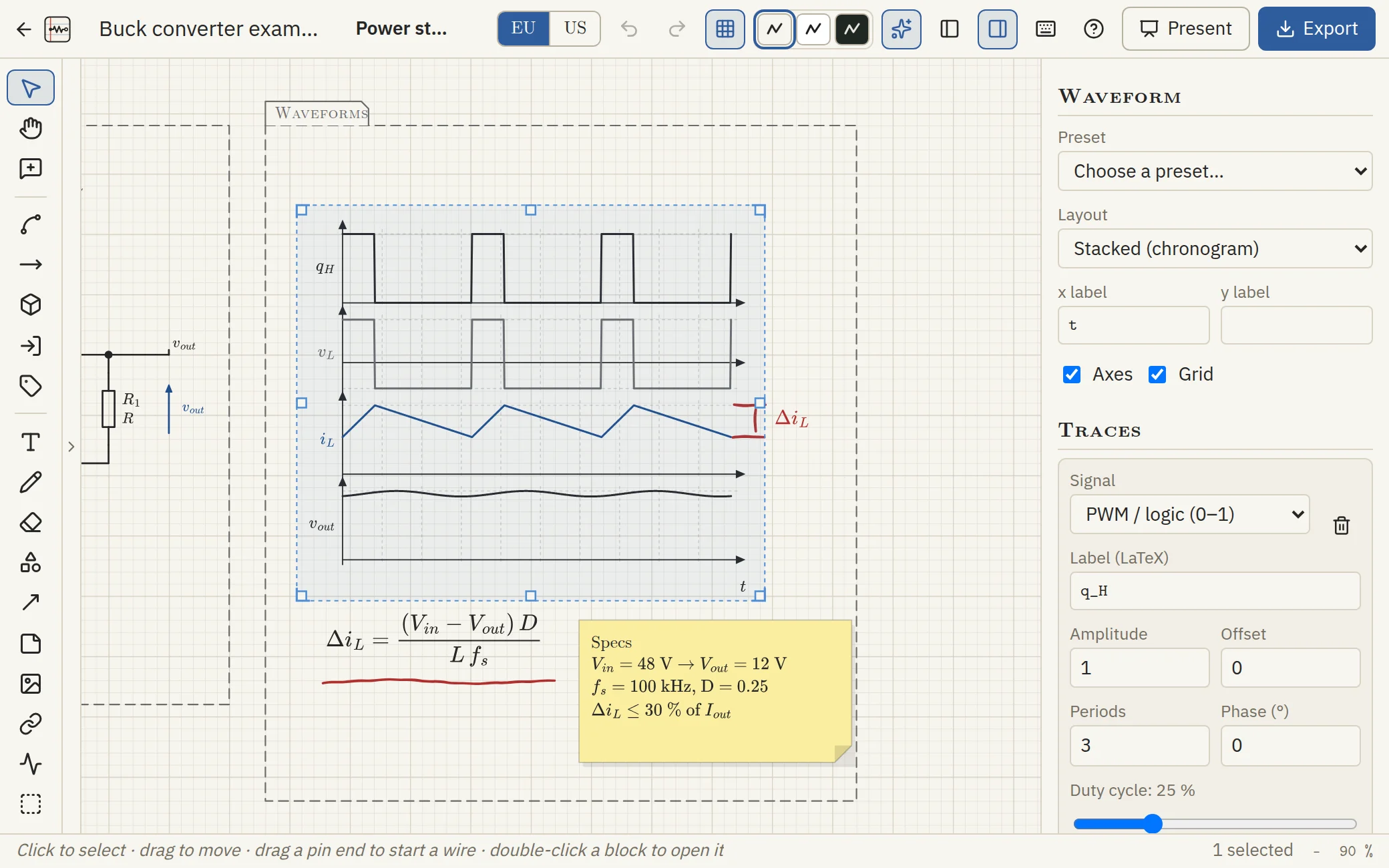
Chronograms and oscillograms from presets — PWM, inductor ripple, step responses, three-phase — with your duty cycle, periods and phase. Annotate them with the pencil, pin a sticky note, draw a flowchart.

  • Pencil with pen pressure, shapes, arrows, images
  • Flowcharts with ISO 5807 shapes and attached connectors
  • Cream notebook, whiteboard or blackboard
The chronogram of the buck converter — gate signal, inductor voltage, inductor current and output voltage — annotated in red pencil, with the ripple formula, a sticky note and the waveform settings.

Collaboration

Work on it together, live

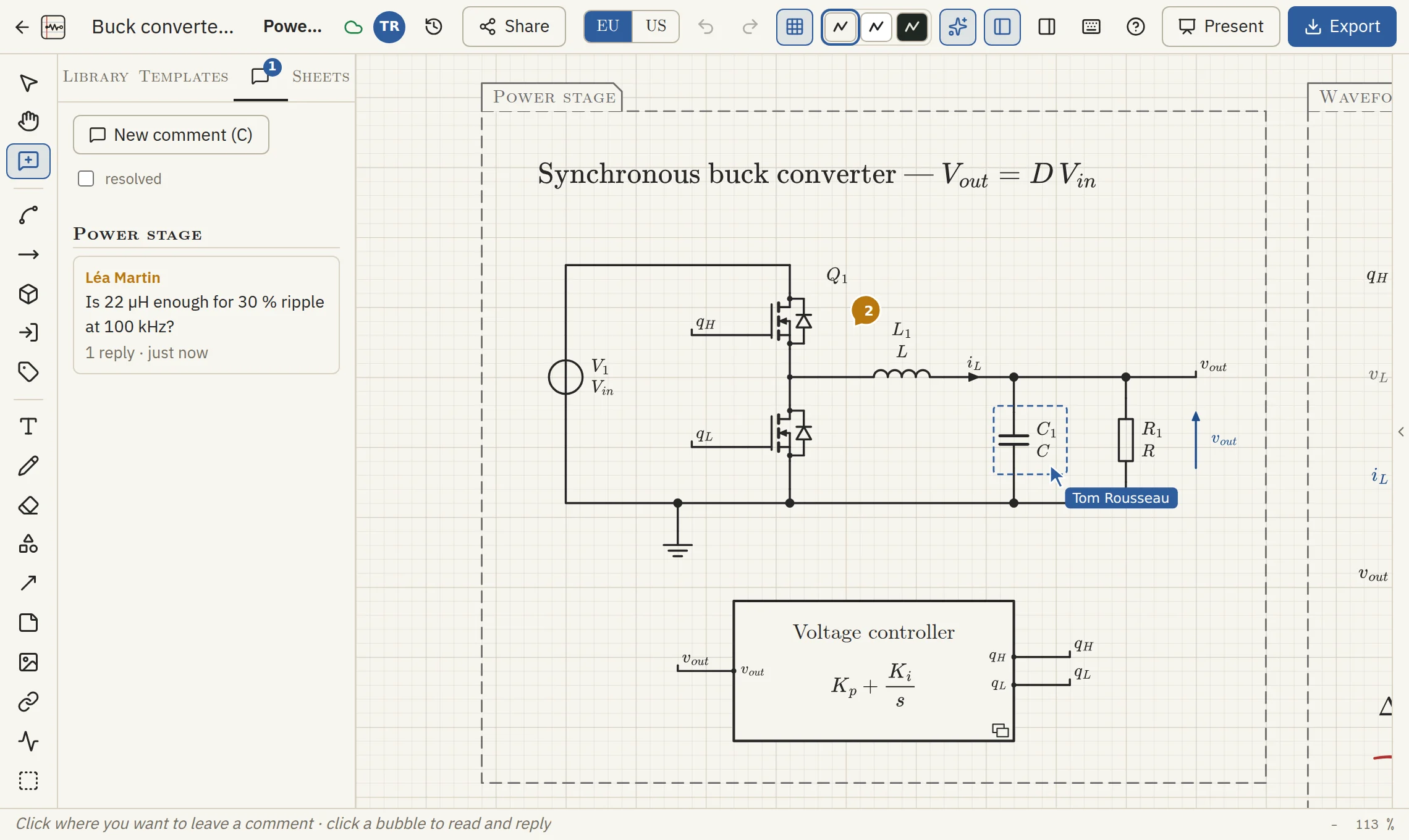
Share with a friend, a team or a link: see each other's cursors, comment right on the drawing, go back to any version. And decide sheet by sheet who can edit, comment, view — or not even see it.

  • Keeps working offline, syncs when you are back
  • Hide the solution sheet until the lab is over
  • Lock a sheet so only you can change it
Two people on the same project: a comment thread about the inductor, and a teammate's cursor on the capacitor.

Present & export

Present it, then put it in your report

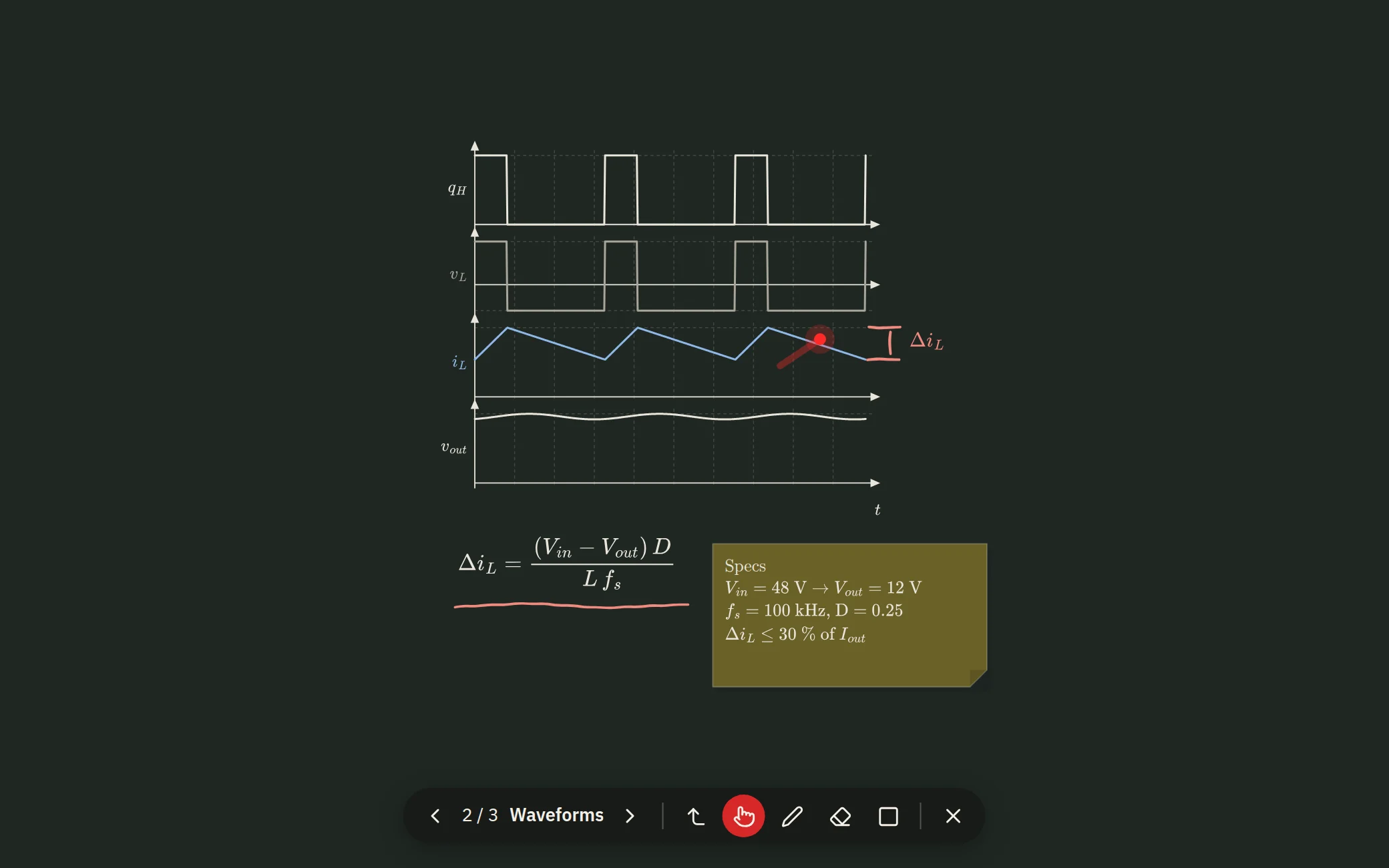
Frames become slides: click a block to dive into its sheet, point with the laser, write with the pen. Then export a clickable PDF, SVG, PNG — or CircuiTikZ code that compiles straight into your thesis.

  • One PDF page per sheet, with bookmarks and links
  • CircuiTikZ with native symbols and your formulas
  • Classmates follow your slides on their own screen
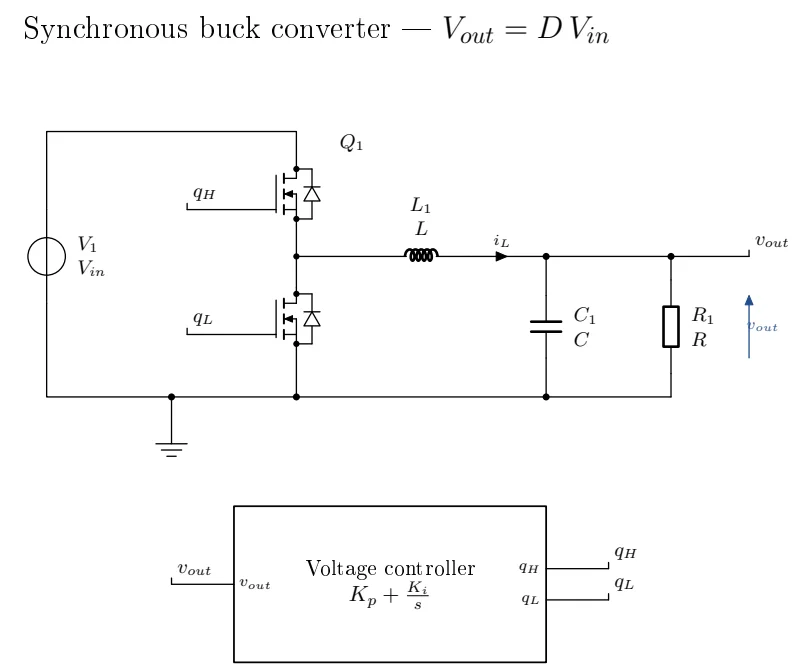
Presentation mode on the blackboard theme: the waveforms slide, with the laser pointer on the inductor current. The buck converter compiled with pdflatex from the CircuiTikZ export.

And more

The small things that save your evening

  • Symbol editor — draw your own parts
  • Templates — reuse a half-bridge with its driver
  • Links — to a datasheet, or to another sheet
  • Version history — go back any time
  • Offline — keeps working, syncs later
  • On your phone — look, zoom, fix a label
  • Keyboard first — press ? to see every shortcut
  • Private by default — projects stay in your browser
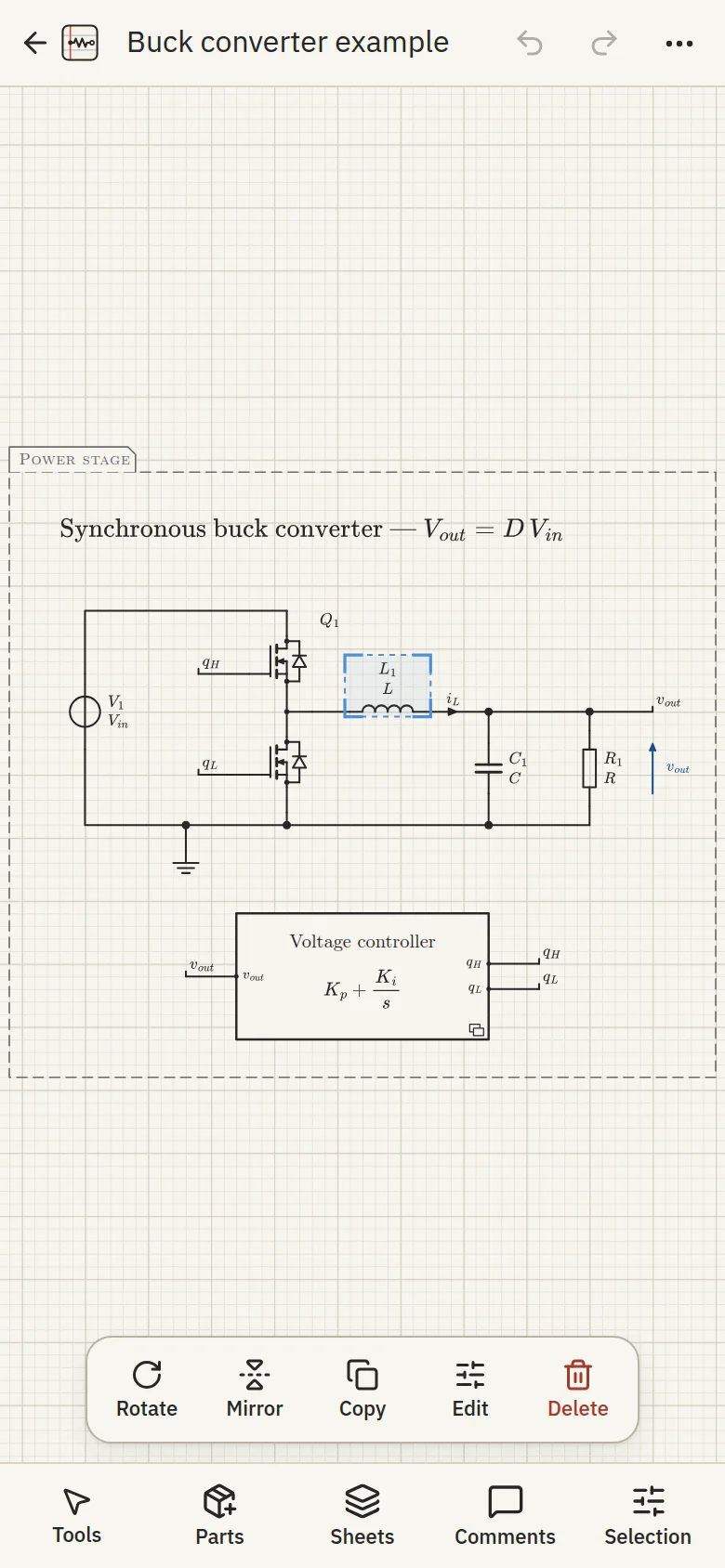
The buck converter example on a phone: the drawing fills the screen, with a bar of actions for the selected inductor.
  1. Schematics
  2. Hierarchy
  3. Waveforms
  4. Together
  5. Present
  6. And more

Open beta

Made by one student, free while it grows

Hi! I'm an engineering student, and I build Circuit Notebook on my own, in my free time. It is an open beta: everything is free, and a few things may still change or break. Tell me when they do — your feedback decides what comes next.

  • Drawing in your browser: free, no account, as many projects as you like
  • With an account: 5 projects on the server to share, up to 5 MB each
  • Your work stays yours: download it any time (project file, PDF, SVG, PNG)

Questions

The short answers. The long one: open the app and try — no account, nothing to install.

Is it free?

Yes — Circuit Notebook is in open beta and free. Drawing, exporting and presenting need no account, and projects in your browser are unlimited. Each account can also keep 5 projects on the server (up to 5 MB each) to share them. Later, a Premium plan will give more room on the server; drawing in your browser stays free.

How can I help?

Circuit Notebook is made by one electronics student. Tell your classmates about it, send feedback, or buy me a coffee on Ko-fi — it pays for the server.

Can I work on it with my team?

Yes: add friends by @username or e-mail, make teams, and share a project with a person, a team or a link. Each one can edit, comment or view — the whole project or sheet by sheet, and a sheet can be hidden from someone. You see each other's cursors, comment on the drawing and keep a history of versions.

Where are my projects saved?

In your browser, on your computer. Nothing is sent anywhere unless you share a project with a collaboration server. You can also download a project file (.olg) to back it up or move it.

Does it work offline?

Yes. Once opened, the editor works without a connection; shared projects sync again when you are back online.

Does it work on a phone?

Yes, for looking and small changes: open a project, zoom with two fingers, move or rotate a part, add one, reply to a comment, present it. Drawing a whole schematic is still more comfortable on a computer, with a mouse.

EU or US symbols?

Both: IEC 60617 (Europe) and IEEE 315 / ANSI (US). Switch the whole project in one click, or override a single part.

Can I put the drawings in my LaTeX report?

Yes: export a vector PDF or SVG, or CircuiTikZ code that compiles with pdflatex. All the labels can be LaTeX.

Does it simulate circuits?

No, and that's on purpose. Circuit Notebook is for drawing, explaining, presenting and working together. Keep your simulator for the numbers, and bring the waveforms back here to tell the story.

Write to me

A bug, an idea, a symbol you miss, a question about your course? I read every message and answer by e-mail.

Or e-mail [email protected]

Your message is only used to answer you. Privacy policy

Open a new page.